As I got busy with studies, a new social networking niche boosted in numbers and strength so dramatically that it has now become the social media network of 2012 with over 10.4 Million registered users and 50 million blog posts featuring Pinterest including MBT. Daily Pinterest users have increased by more than 145 percent since the beginning of 2012. More than one-fifth of Facebook users are on Pinterest every singly day (which equals more than 2,000,000 FB users). It shows how crazily this new social media platform is emerging amongst the already existing giants like Facebook, twitter, Google Plus and LinkedIn.
 It therefore becomes the next important referral traffic source for bloggers to increase traffic to their blogs through Pinterest follow buttons and Pin it count buttons. For me honestly debugging the Pinterest code was the most difficult task. Pinterest Goodies Page provides a simple HTML code with a JavaScript link and it contains no dynamic variables/parameters that may work in blogger or wordpress based blogs. They don't have a developers page from where one could fetch relevant information. Thus we had to rely on forums and Wordpress plugins to rip out a code for BlogSpot blogs. This code is so sensitive that if you try to make the slightest change to it, it would not work.
You can see the demo live on our blog just below post titles. We have added a horizontal count button that increments whenever a post is pinned. You don't need to worry about the correct featured thumbnail selection because we are using a custom JavaScript code that will offer your visitors with a wide variety of images to choose from to bookmark/pin your blog post.
Don't forget to read these delicious tips and tutorials!

Adding the "Pin it" button
Please don't edit the code below and neither add it inside Tables or div sections because the JavaScript is not well scripted and is sensitive to slightest of change in styling. Use it as given. I will publish fresh posts on how to add it to sharing widget below post titles and to the floating share widget.- Go To Blogger > Template
- Backup/restore your template
- Click the Edit HTML button
- Click Proceed
- Click the box "Expand Widget Templates"
- Search for this code:
<data:post.body/>Now if you wish to add the count button below post titles then you will have to paste the coming codes just above the code in step#6 otherwise if you wish to display the button at the bottom of posts then add the coming codes just below step#6 code.
7. Paste the following code below or above (depending on your choice of location) the code in step#6
For horizontal count Use this code:

<a class='pin-it-button' count-layout='horizontal' expr:href='"http://pinterest.com/pin/create/button/?url=" + data:post.url'>Pin It Now!</a>
<a href='javascript:void(run_pinmarklet())' style='margin-left:-93px; width:43px; height:20px; display:inline-block;'/>
<script src='http://assets.pinterest.com/js/pinit.js' type='text/javascript'/>
<script type='text/javascript'>
function run_pinmarklet() {
var e=document.createElement('script'); e.setAttribute('type','text/javascript');
e.setAttribute('charset','UTF-8');
e.setAttribute('src','http://assets.pinterest.com/js/pinmarklet.js?r=' + Math.random()*99999999);
document.body.appendChild(e);
}
</script>
For Vertical count Use this code:
<a class='pin-it-button' count-layout='vertical' expr:href='"http://pinterest.com/pin/create/button/?url=" + data:post.url'>Pin It now!</a>8. Save your template and you are all done!
<a href='javascript:void(run_pinmarklet())' style='margin-left:-46px; width:43px; height:20px; display:inline-block;'/>
<script src='http://assets.pinterest.com/js/pinit.js' type='text/javascript'/>
<script type='text/javascript'>
function run_pinmarklet() {
var e=document.createElement('script'); e.setAttribute('type','text/javascript');
e.setAttribute('charset','UTF-8');
e.setAttribute('src','http://assets.pinterest.com/js/pinmarklet.js?r=' + Math.random()*99999999);
document.body.appendChild(e);
}
</script>
How it works?
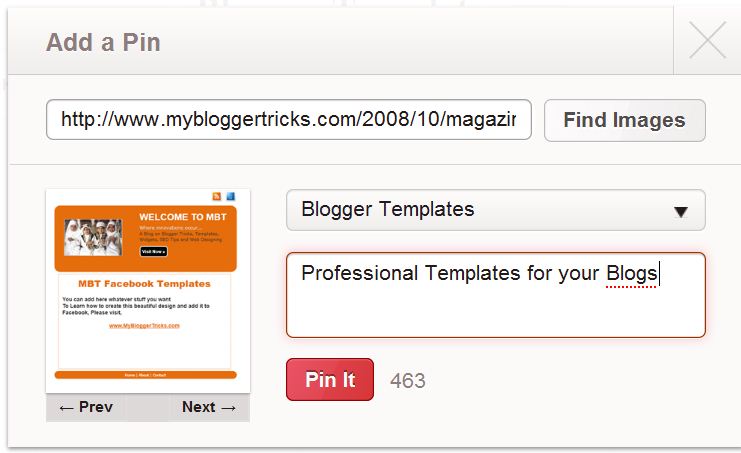
Upon clicking the pin it now button, a window will open that contains important thumbnail images on that specific blog post. The visitor will pin just one image and then he will be asked to add it to his Pin boards and share it on his Pinterest account. If suppose the visitor does not want to pin any image then he can simply click the Cancel Pin button to go back to the blog post.

Need help?
Follow this easy tutorial and let me know if you needed any further assistance. We have tried to add all necessary codes to make things work. the variable data:post.url is only included and we did not included one for thumbnails because it is more wise to let the visitor choose a thumbnail of his choice rather forcing him to select one that you automatically provide. Have fun exploring this new social media bird and we will make sure to educate you with its proper use. Do not forget to Pin this post! :) Peace and blessings pals.

 We have shared with you what is pinterest and a few guidelines about setting up a page for promoting your blog through it. But, we have been informed that many of our readers are finding it difficult to create an account and customize this new born network so we have composed this guide for you all, to simplify your problem. Follow up and you will enjoy pinterest the way it deserves.